 IPTVSubs
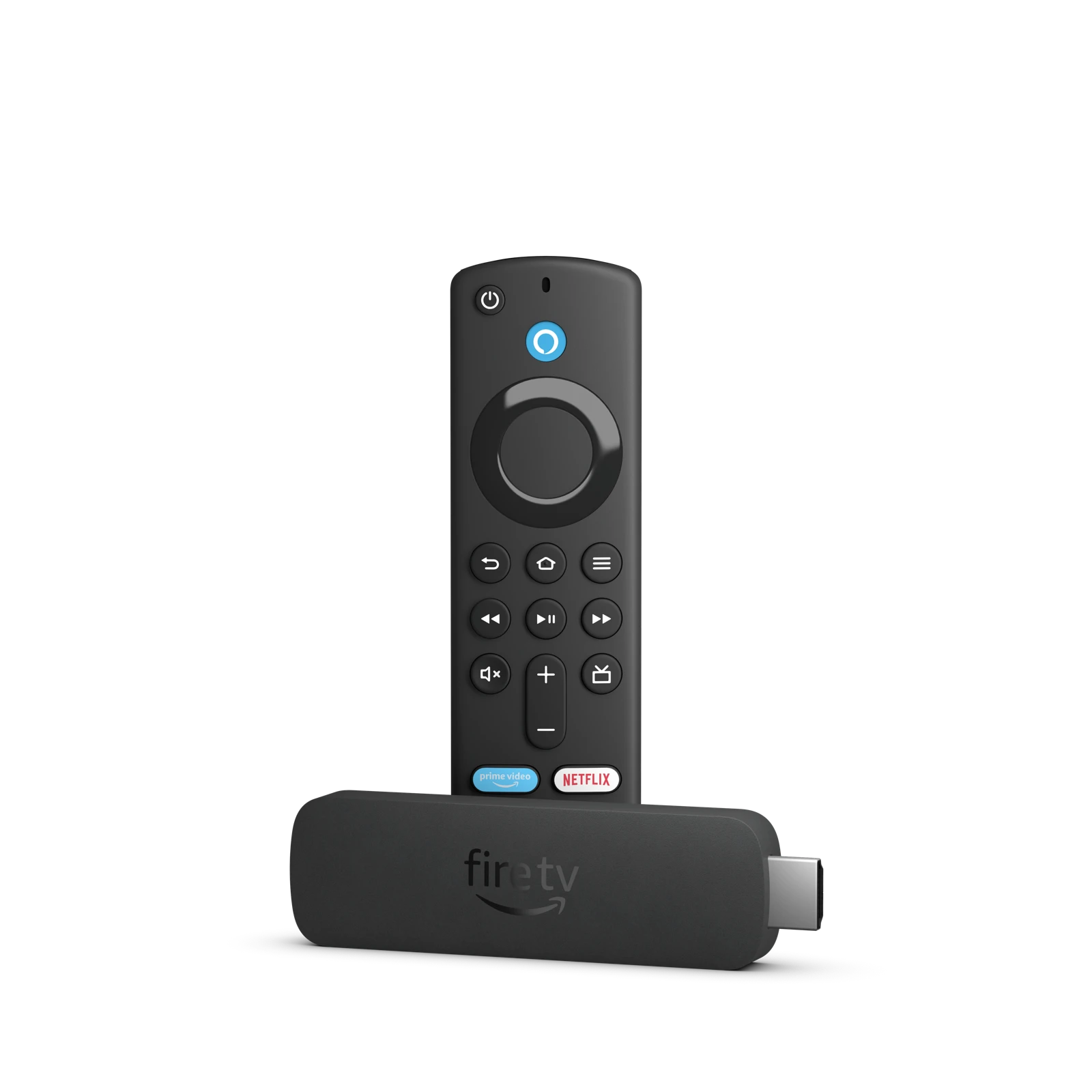
Amazon Fire TV
Search the Amazon Appstore on the stick using the exact app name. Check the publisher, Fire OS version and whether the service uses a playlist or a provider-managed login.
Find setup checks for TVs, streaming devices, phones and computers.
Search the Amazon Appstore on the stick using the exact app name. Check the publisher, Fire OS version and whether the service uses a playlist or a provider-managed login.
Open Google Play on the television or box. Check the app is listed for television use and confirm the package publisher before paying for an app licence.
Use the Apps tab on the television and check the listing from that device. Use the TV remote during a trial to test guide navigation and resume playback.
Open Apps on the Samsung television. Confirm the model year, regional store and Tizen version before buying or transferring a player licence.
Search the LG Content Store from the television. Compare the exact webOS version and country setting with the player publisher’s availability information.
Search the App Store on Apple TV for the tvOS edition. Check whether the app supports the login method issued by the provider. Test with the Apple TV remote.
Check the App Store publisher and iOS requirements. Preview how the app restores purchases before paying if you intend to use the same player on another Apple device.
Find the app in the App Store and check the iPad compatibility entry. Confirm whether the licence is shared with the iPhone edition and test touch navigation.
Confirm the app and publisher in Google Play. If the provider supplies its own app, verify the distribution page and package identity before installation.
Use the player publisher’s official download page or Microsoft Store listing. Check supported Windows versions and whether the app accepts the required account format.
Use the publisher’s download page or the Mac App Store. Verify Apple silicon or Intel support and check the app’s licence before importing your private account.
Find the exact MAG model and firmware. Ask the provider if it supports a portal for that model and use only the portal setting supplied for your account.
Find the model, firmware and installed MYTVOnline version. Ask which connection or portal type to use on that version before entering any account details.
Check the Roku Channel Store on the device and compare the model and region with app availability. Confirm whether the provider supplies a Roku-supported option.
Identify whether the receiver runs Google TV or only receives casts from another device. Verify support for the correct method in the player you intend to use.
Use only the verified provider web-player destination. Check supported browsers and whether the service needs playback permissions or a specific account login.




Use the model number and app store on your television.
Browse published plans
Record the screen model, player and login type.
Browse published plans
Ask whether the app expects a portal, playlist or account.
Browse published plans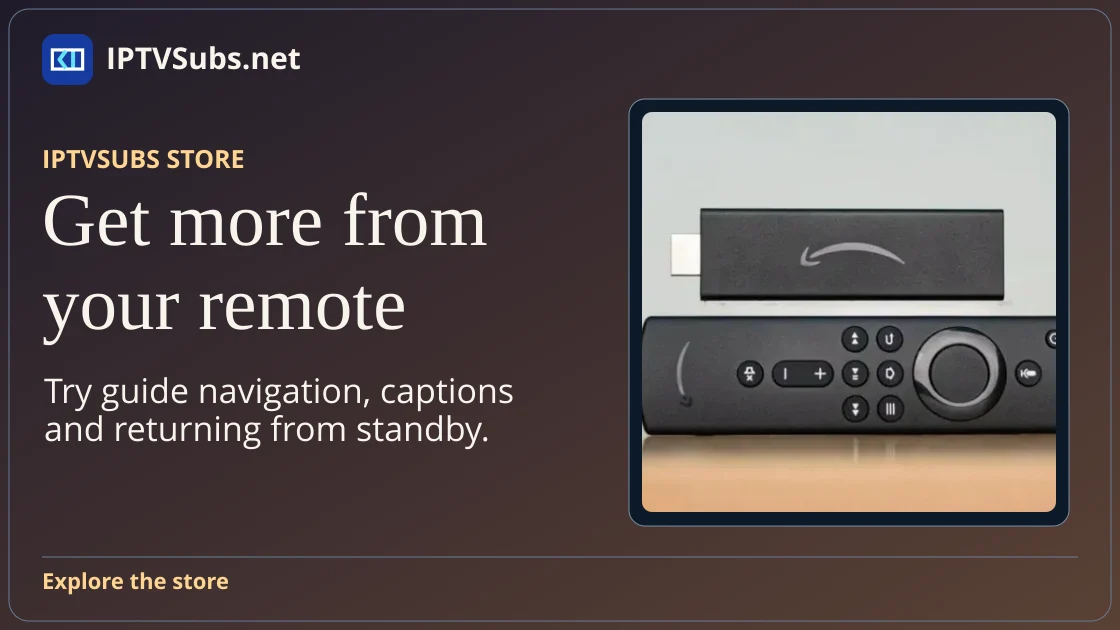
Try guide navigation, captions and returning from standby.
Browse published plans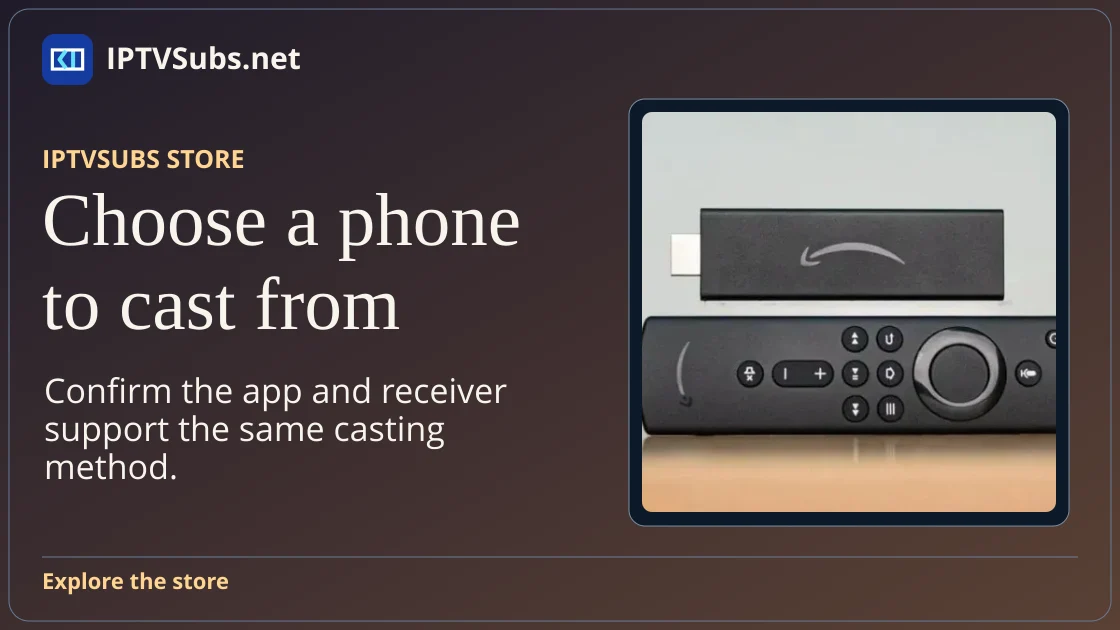
Confirm the app and receiver support the same casting method.
Browse published plans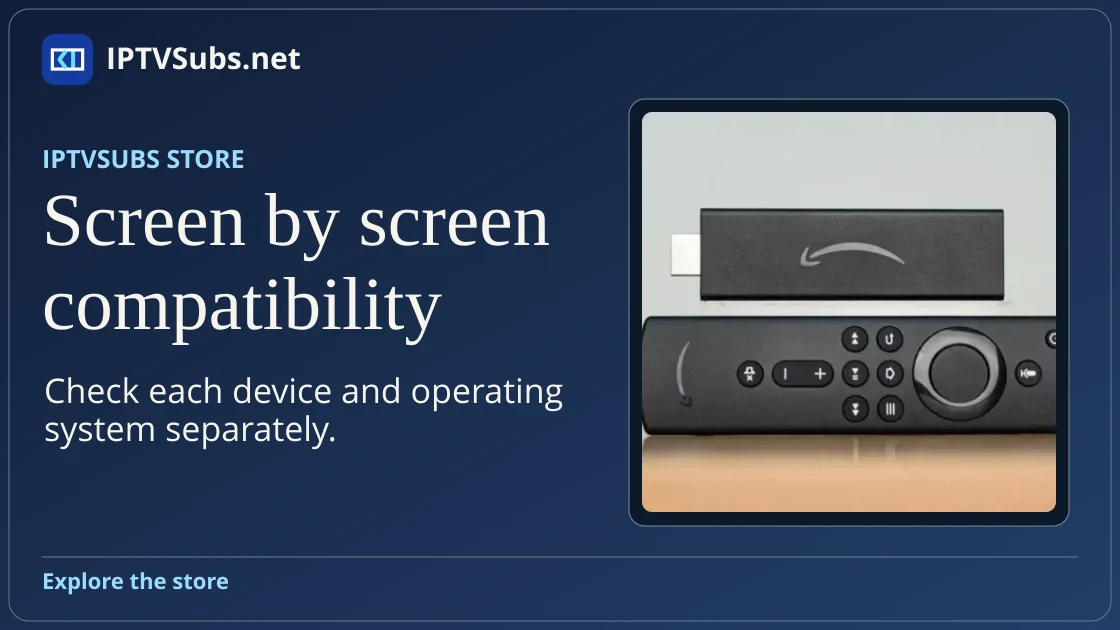
Check each device and operating system separately.
Browse published plans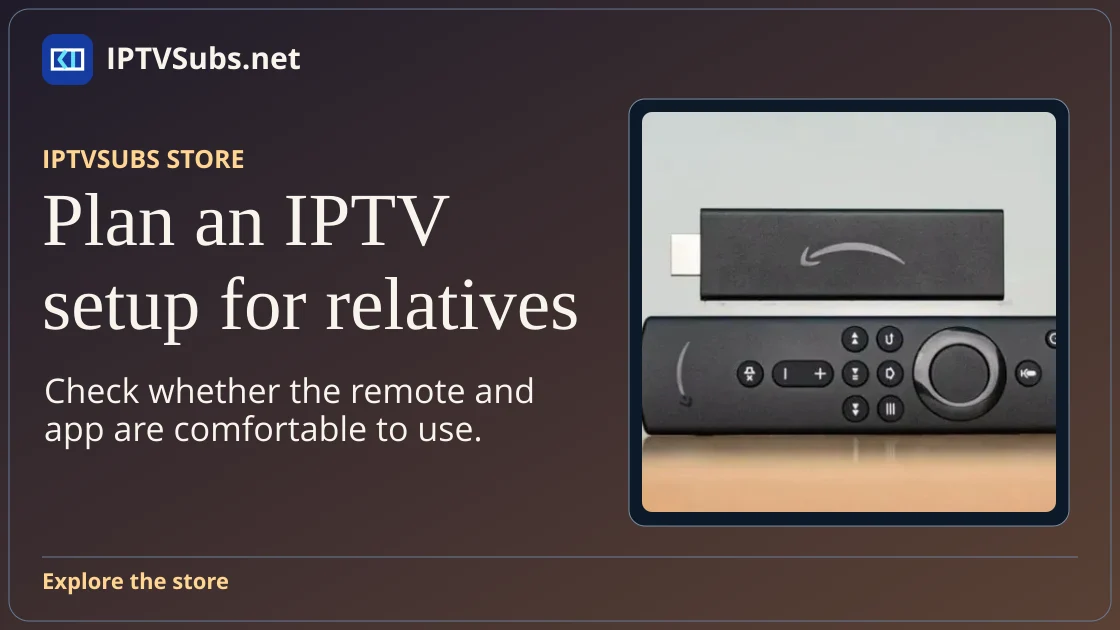
Check whether the remote and app are comfortable to use.
Browse published plans